Deployment
Overview
The Hosting & Observability module in Blocks Cloud provides a streamlined way to deploy, monitor, and analyze your applications—all from one place. It connects directly with your repositories, automates deployments, and delivers detailed observability insights for every build.
With this feature, you can:
- Deploy projects seamlessly — Choose between automatic or manual deployment modes, configure hosting regions and machine specs, and launch directly from the platform.
- Monitor deployments in real time — View live logs as your application builds and deploys, and revisit them anytime for troubleshooting.
- Track build history — Access previous deployments, review analytics, and assess performance metrics such as SAST, SCA, and DAST scans.
- Enhance visibility — Use integrated observability tools like Dependency Track to explore security scan results in greater detail.
- Host with flexibility — Configure and deploy to custom domains directly from your project overview.
This guide walks you through the complete deployment flow—from setup to monitoring—to help you confidently host and observe your applications on Blocks Cloud.
Deploy your code
Currently, deployment is only supported for repositories that are built on top of Blocks Construct as a foundation. Any repository outside of that scope will fail to deploy.
In order to deploy, please make sure you have authorized Blocks Cloud to access your repositories. See adding a repository.
Select the Deployment option from the sidebar. This leads to the Deployment Overview section, which presents cards for each associated repository. Clicking on a card opens the Repository Details page. If there is no existing deployment, there will be a Deploy Now button.
Clicking Deploy Now opens a modal to configure deployment specifications. The user can choose between:
- Deployment Type:
- Git based deployment - Deployment initiates every time a push to the connected repository is made
- Blocks Cloud based deployment - Deployments are initialed from the Blocks Cloud Platform by the users. In order to initiate a manual deployment, click on the deploy button on the top right in the the details page of a repository.
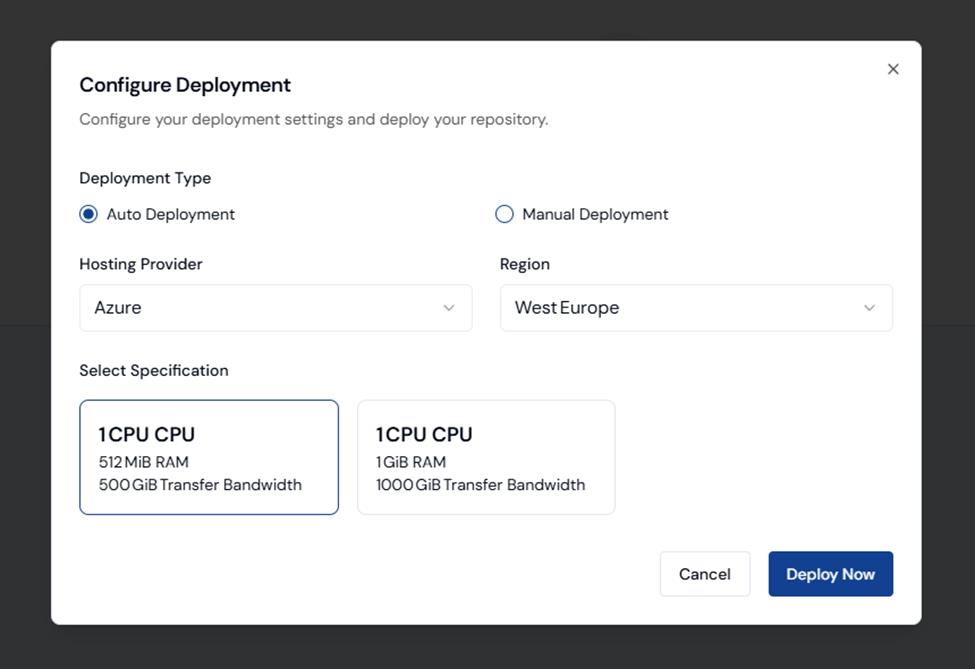
After confirming, the deployment process begins. The user is redirected to a live deployment page that shows general deployment information and real-time deployment logs.
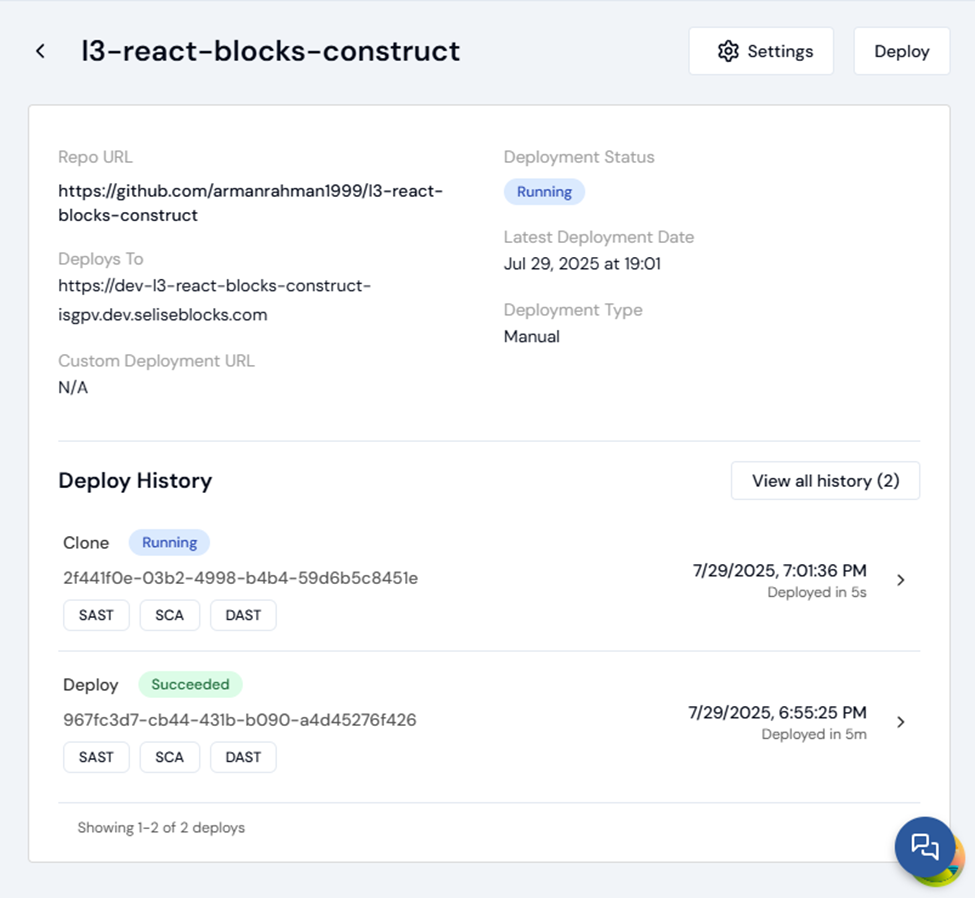
See Deployment History
The Deployment Information page has a Deployment History section that lists all previous builds. Each build entry includes detailed observability metrics such as SAST (SonarQube analysis), SCA (Software Composition Analysis), and DAST (Dynamic Application Security Testing), along with specific analytics related to that build.
View Deployment Logs
The logs will be shown live as the deployment process takes place. Users can expect the logs to appear section by section. The final status is "Deploy". Once completed, the project will be hosted atht he configured URL. Look in the "Deploys To" field in the deployment overview page to find the Deployment URL. The logs can always be revisited.
Deploy to a custom URL
- Set a custom domain from project overview page. (Clicking "Configure" button)
- In overview page's repo lists summary page click "Edit domain" and set a custom domain for repositories.
- After setting up custom domain save it and Deploy the repository from repository details page.
Monitor your deployments
The monitoring feature in Blocks Cloud allows you to track the health and uptime of your deployments using configurable monitors. You can set up request-based or callback-based monitors, view detailed uptime statistics, and receive email alerts when incidents occur.
Setting up a monitor
Click on your deployment in the Deployment Overview page. Click on "Add" in the Monitoring panel. There are two types of monitors you can add: Request and Callback.
Request Monitors
Request monitors are monitors that Blocks Cloud will send requests to in order to observe uptime. You need to specify the URL that you want to monitor. The monitor can be set to send requests at intervals, and the lifespan for each request can be set as well using the Request timeout slider. Additionally, you can specify the HTTP method for your requests as one of the following three: HEAD, GET, POST. You can also send JSON objects in the request body.
Callback Monitors
Callback monitors are ones that Blocks Cloud will wait to receive requests from. Once you set one up, the URL that you will need to hit in Blocks Cloud to notify that your service is up will be auto-generated and displayed.
Once you've set up a monitor, the uptime details of the resource are shown in tabular form. Each of the 24 vertical bars represents the health of exactly one hour. If you hover over the bars, you will see the time range and the percentage of uptime. You can pause or delete the monitors by clicking on the three-dot menu and choosing the respective option.
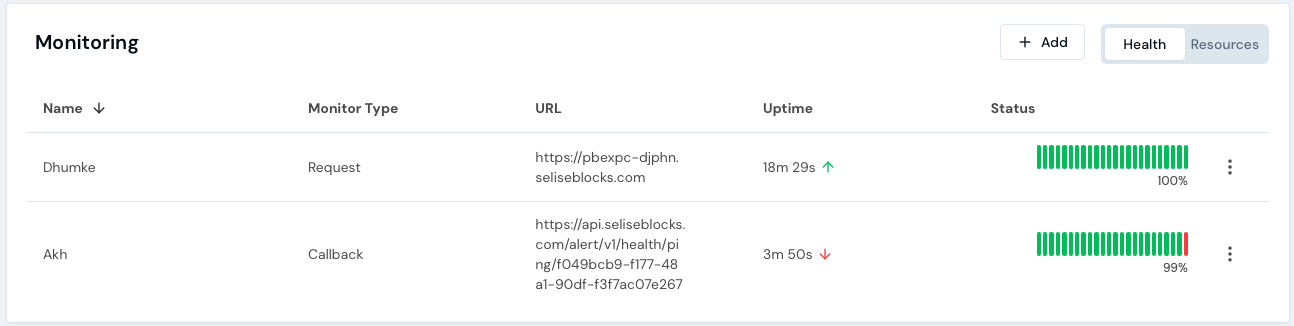
Click on one of these rows to see the details of your monitor.
You will find the following information here:
- The URL to monitor
- The monitor type
- The recipients of the alert email
- A summary of your health in cards
- Current Status
- Last 7 Days
- Last 30 days
- Last 365 days
- Total downtime
- No of incidents
- Uptime percentage
You will also see the ability to edit the settings of your monitor on this page in the "Configure" option. You can also pause or delete the monitor by clicking on the three-dot menu in the top-right corner of this page.
Setting up alerts
Whenever an incident is detected in the system, it can notify users via email. To set up notification recipients, you can click on "Add recipient" in the "General Information" tab on the details page. You can add more than one recipient. You can also set up recipients through the "Notification Settings" button in the top-right corner of the details page.
Observability
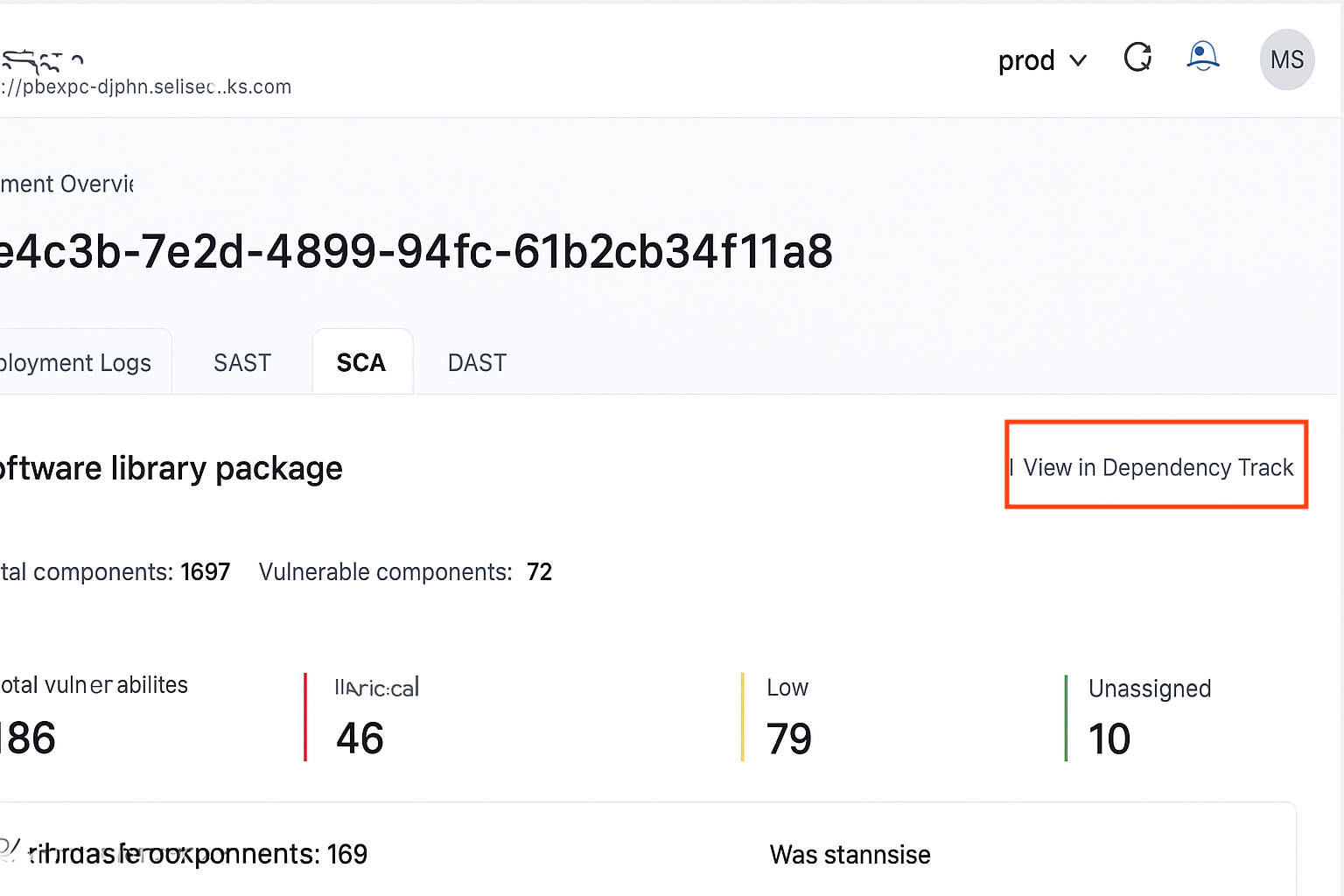
For each deployment, the SCA, SAST and DAST results are available for users to see. You can click on each of these to see further details of these results.
Users will be able to visit Dependency Track and observe the results directly by using their blocks account to loging to the Dependency Track Dashboard. Click on the button on the top right "View in Dependency Track" to navigate to the Dashboard for more details on the SCA scans.
DAST is currently under development.