Storage
Overview
The Storage Service provides a centralized way to configure and manage multiple file storage providers within your application. It supports popular services such as AWS, Azure, and SFTP, allowing teams to seamlessly upload, store, and retrieve files through the Storage API. A default Azure configuration is included for immediate use, and additional providers can be added as needed. Each configuration defines how the application connects to a specific storage backend, enabling flexible management of different environments or use cases.
With the ability to create, edit, and utilize multiple storage configurations, the Storage Service ensures a consistent and scalable approach to handling files across your system.
Add Storage Configuration
- Navigate to Core Services → Storage .
- Click Add Configuration (top-right corner).
- In the Add Storage Configuration popup:
a. Select a Storage Provider.
b. Fill in the required fields.
c. Click Save to confirm.
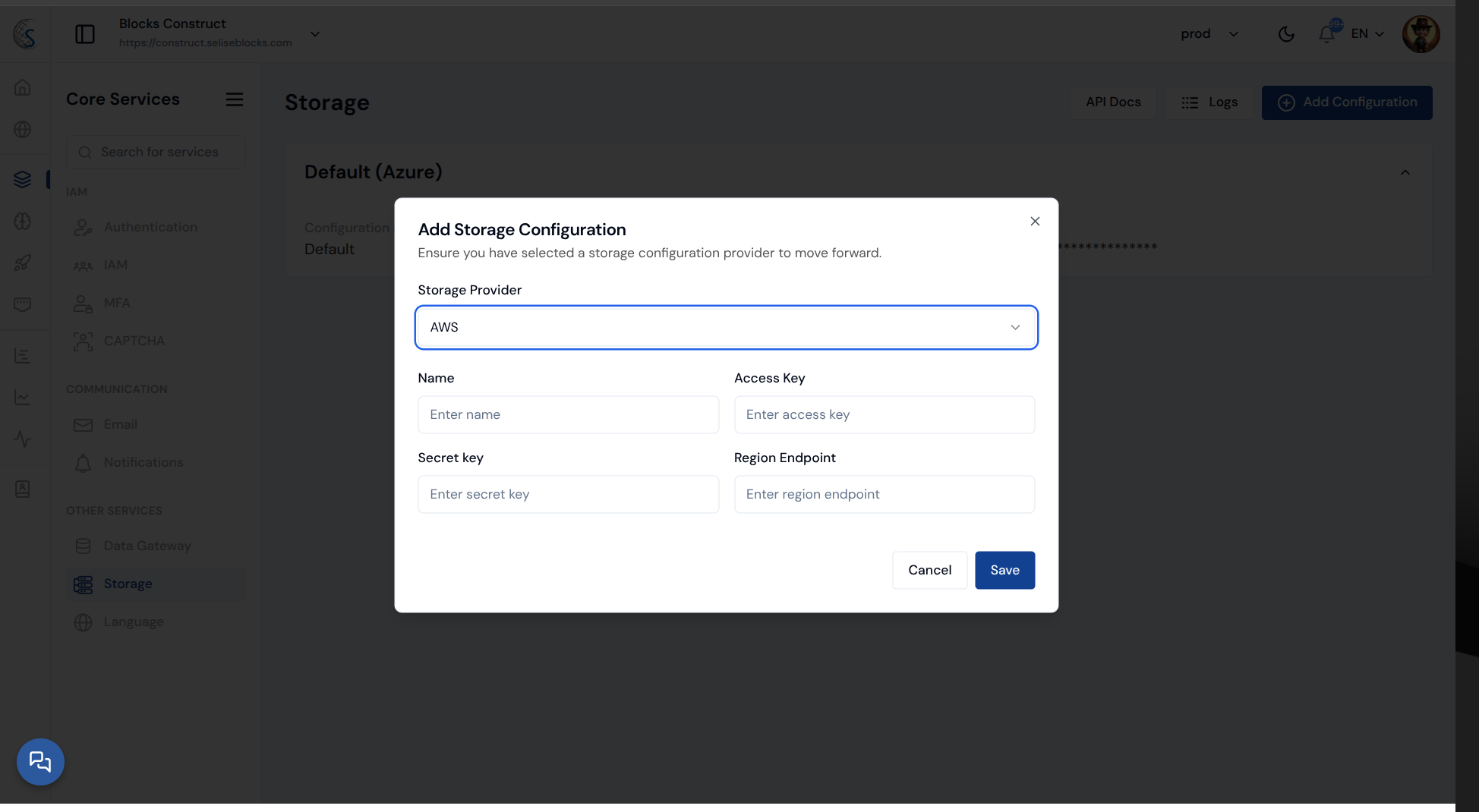
When you select AWS , you’ll need to provide:
- Name — a unique name for your configuration.
- Access Key and Secret Key — your AWS credentials.
- Region Endpoint — your AWS region (for example, us-east-1).
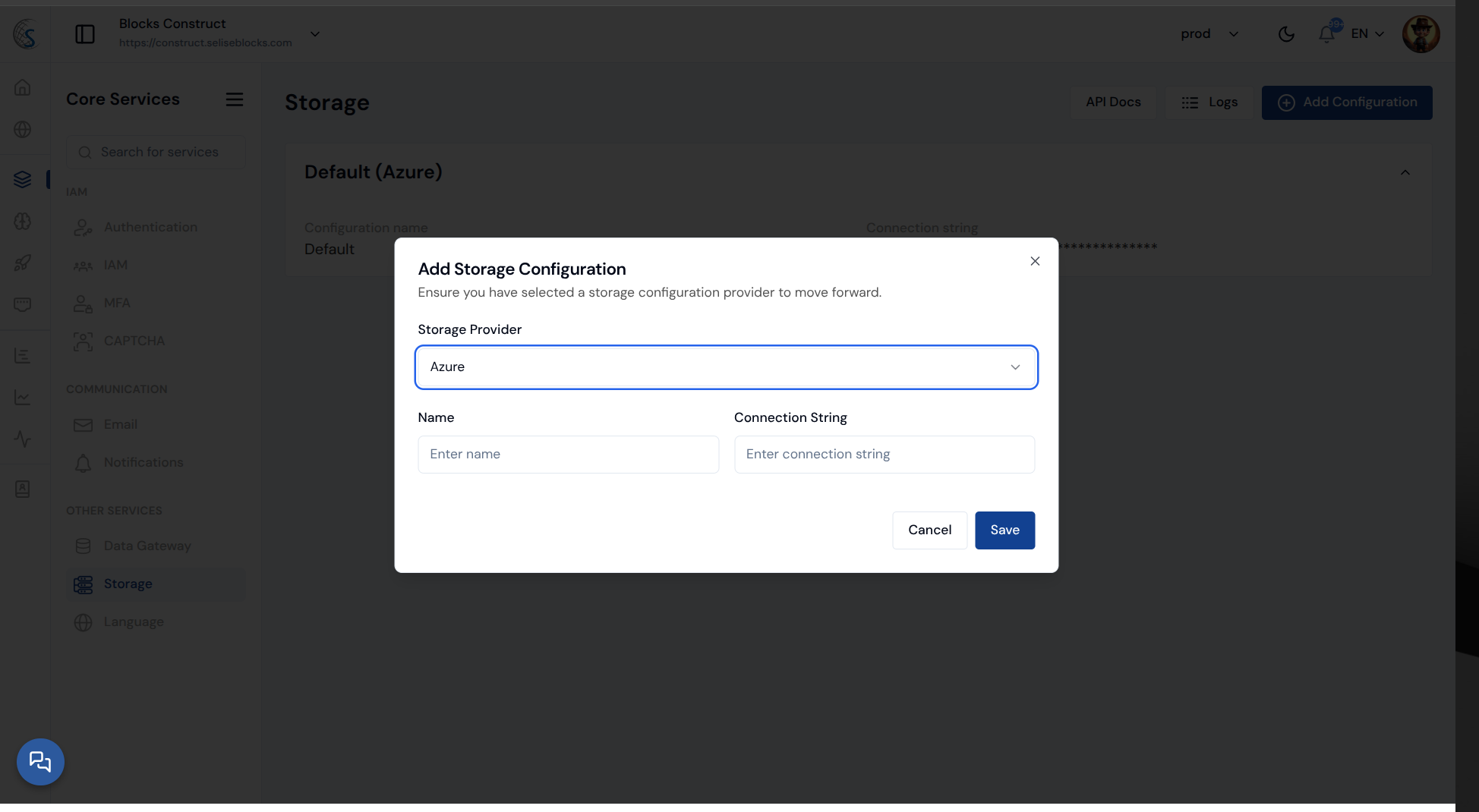
When you select Azure , you’ll need to provide:
- Name — a unique name for your configuration.
- Connection String — the full connection string from your Azure storage account.
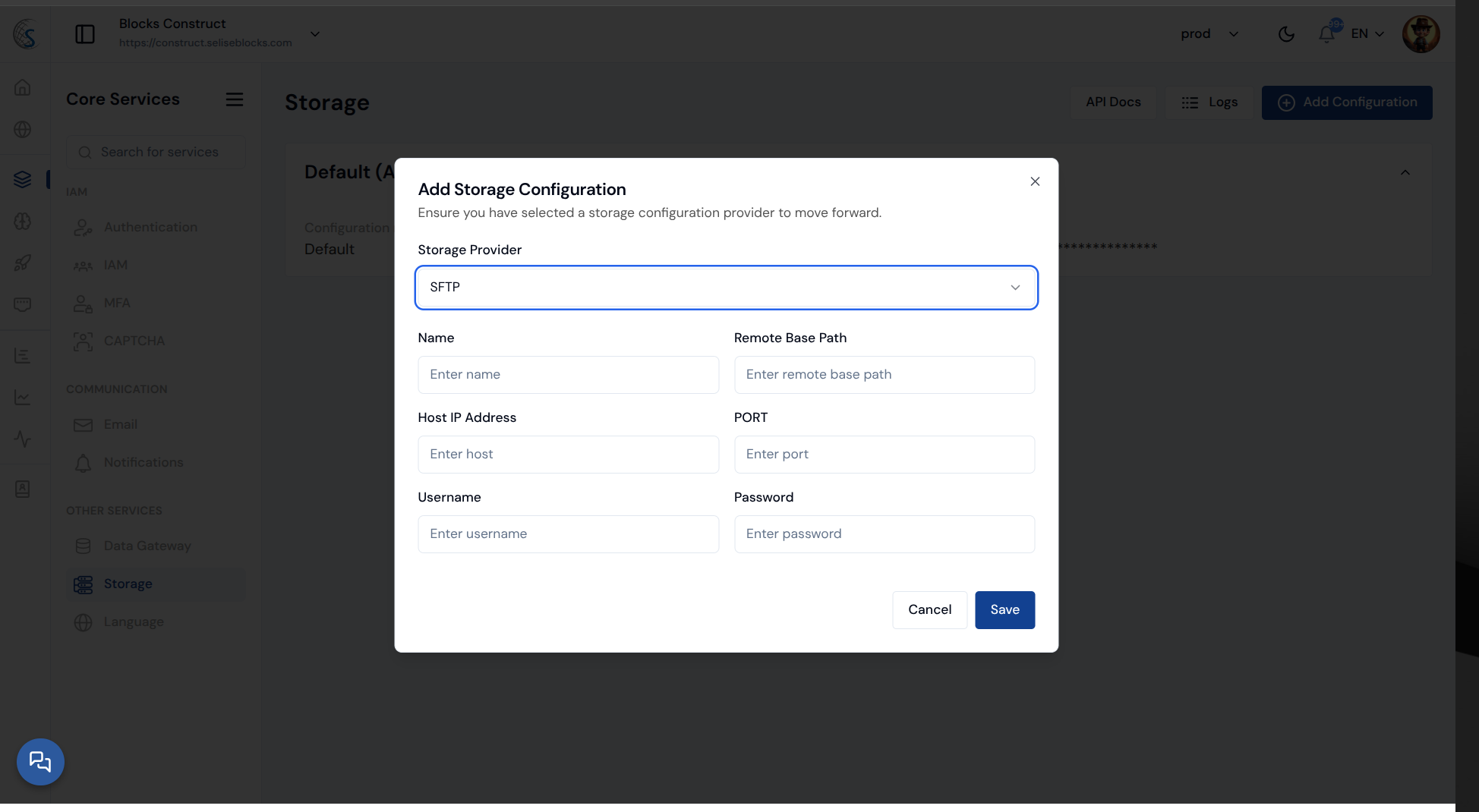
When you select SFTP , you’ll need to provide:
- Name — a unique name for your configuration.
- Remote Base Path — the root folder path on your SFTP server.
- Host IP Address and Port — where your server is hosted.
- Username and Password — your SFTP login credentials.
- This connects your custom SFTP server for file uploads.
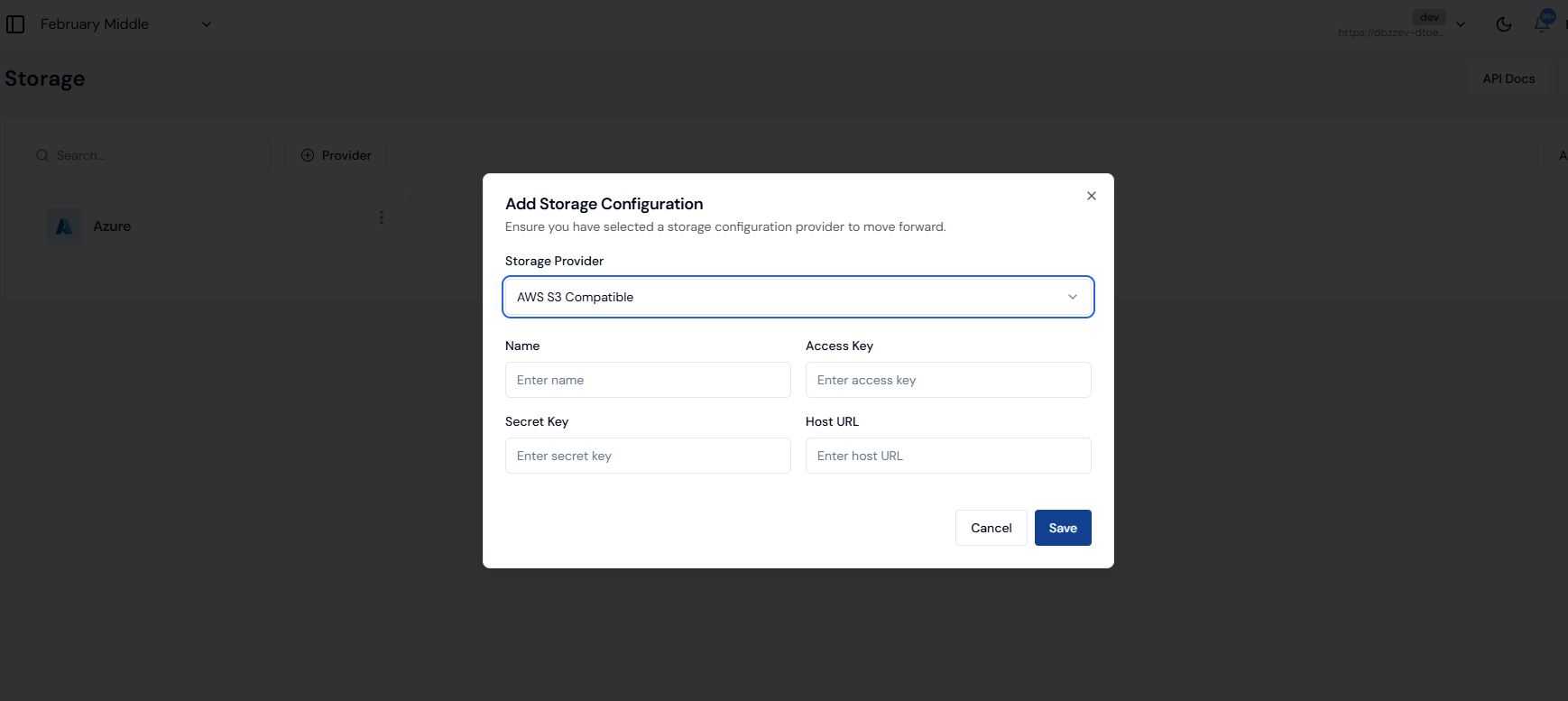
When you select AWS S3 Compatible, you’ll need to provide:
- Access Key — The credential used to authenticate your application with the storage provider.
- Secret Key — The credential paired with the Access Key, used to securely authorize access.
- Host URL — The endpoint address of the S3-compatible storage service where your files will be stored.
- This connects your application to the storage service for file uploads
The default configuration cannot be edited or deleted.
Use Storage Configuration
Once your storage configurations are set up, you can use them to upload and retrieve files through the Storage API.
Document Management System (DMS)
Blocks Cloud Storage includes a built-in Document Management System (DMS), providing a structured and centralized way to manage files across the platform. A dedicated folder is automatically created for each Blocks Cloud service to ensure consistent organization. For example:
- Knowledge Base files appear under the AI folder
- Language files appear under the Localization folder
- Uploaded profile pictures appear under the IAM folder
To add content to your DMS:
- Go to your configured storage (e.g., AWS S3 Compatible)
- Select Cloud or Construct
- Click Add New. From here you will see two options:
Add a Folder
- Click Create New Folder
- Enter the Folder Name
- Click Create
A new folder will be created under the selected storage configuration.
Upload a File
- Click Upload File
- Click Click to upload and select your file
- Click Upload
The file will be stored in the selected folder under the configured storage.