Models
Overview
Blocks AI is built to be Model Provider Agnostic. Users can choose any model provider they prefer—whether from major official LLM providers or custom models hosted on their own infrastructure.
Under AI > Models, users can add their desired models and start using them with Blocks AI. For users who do not have access to AI models, Blocks Cloud offers the following preconfigured models from Azure OpenAI:
- GPT-5 Mini
- GPT-4o
- GPT-4o Mini
Setting Up Your Own Models
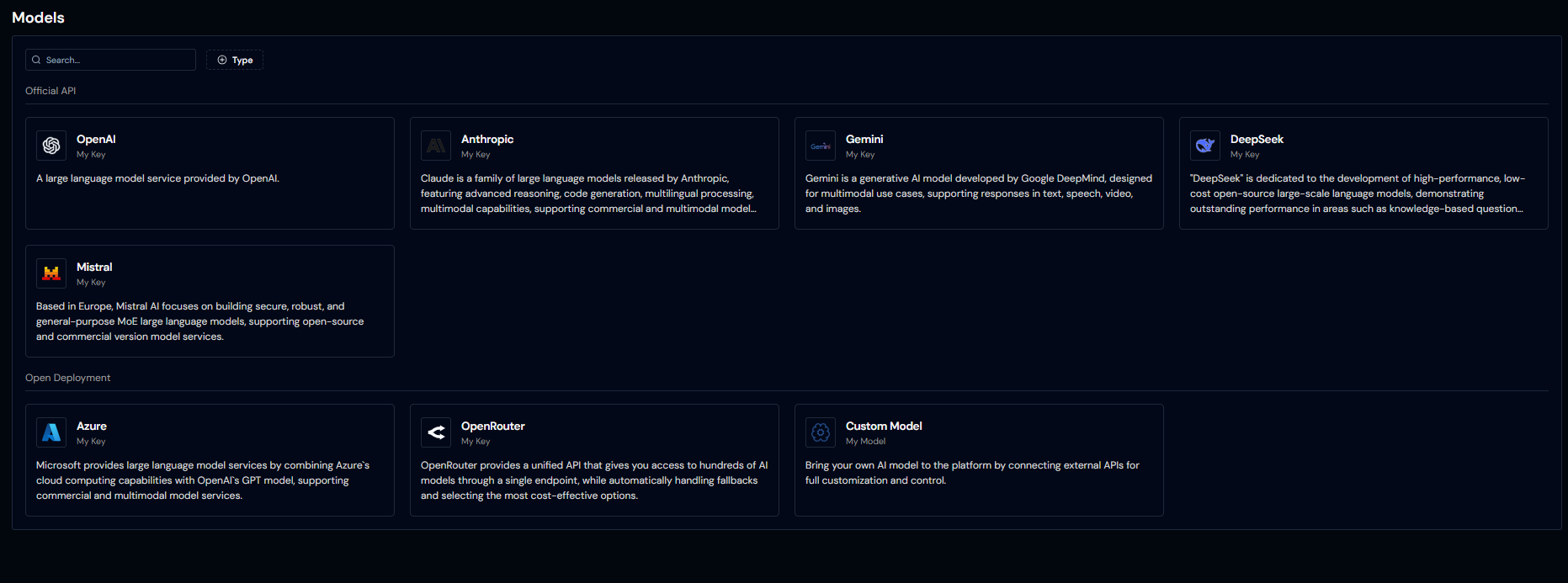
From the side navigation, go to AI > Models. There are two main sections:
Official API
Quickly connect to supported LLM providers by simply adding your API key—no custom configuration required.
Open Deployment
Open Deployment allows configuration and hosting on custom domains, offering more flexibility than official APIs. Users can also connect self-hosted models using the Custom Model configuration.
This option supports:
- Provider-specific deployments
- Fully custom provider endpoints
- Advanced configuration options
Users can select providers from major vendors or integrate custom-hosted providers using built-in provider management tools.
Adding Official APIs
If you already have API keys from supported providers:
- Select the provider you want to connect.
- Open the provider’s details page.
- Click Add Model.
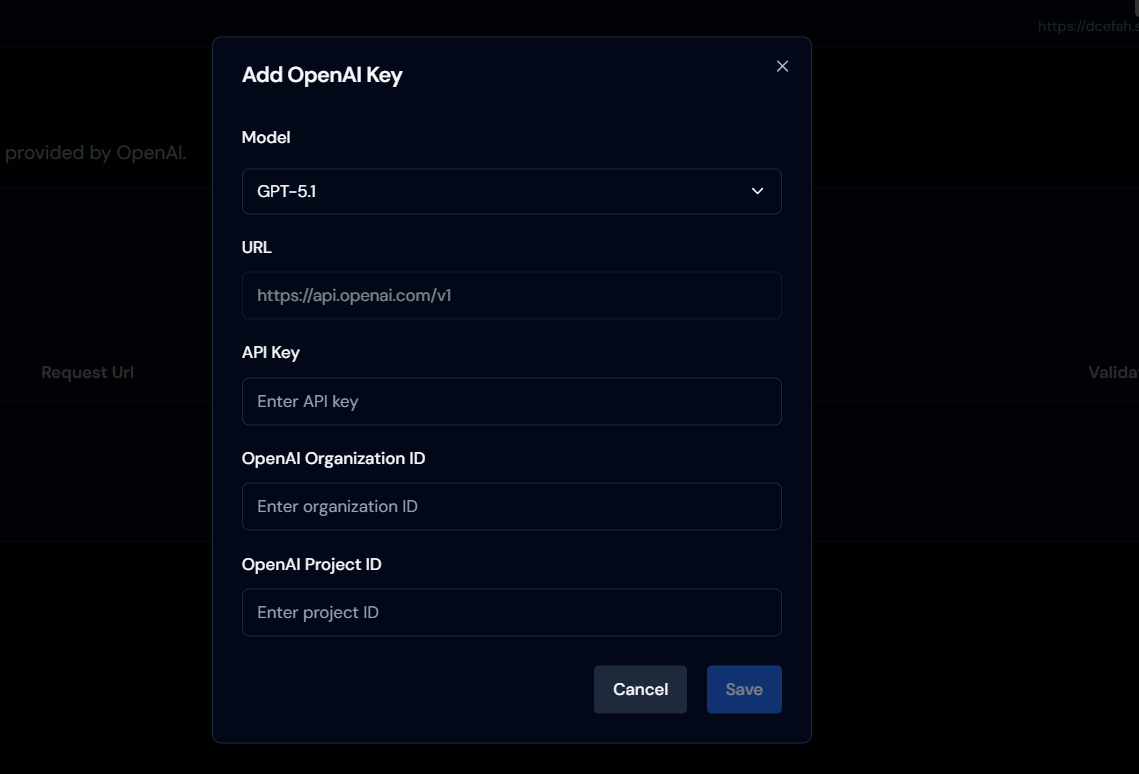
- On the Add <Provider Name> Model screen:
- Select the desired model from the dropdown
- Paste your API key
- Provide any additional provider-specific configuration
- Click Save
Adding Open Deployments
Open Deployment supports the following options:
Azure
Since Azure supports custom domains, it is configured under Open Deployments.
Steps:
- Select Azure
- Open the Azure models page
- Click Add Models
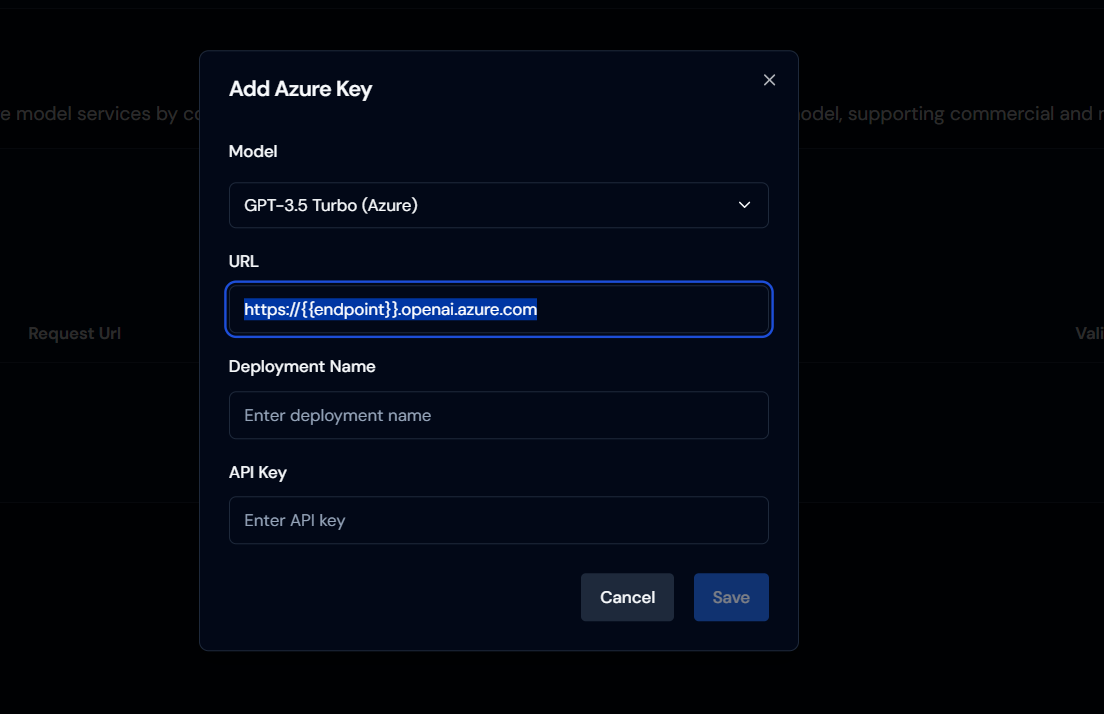
Configuration fields:
- Select Model
- Enter URL
- Enter Deployment Name
- Enter API Key
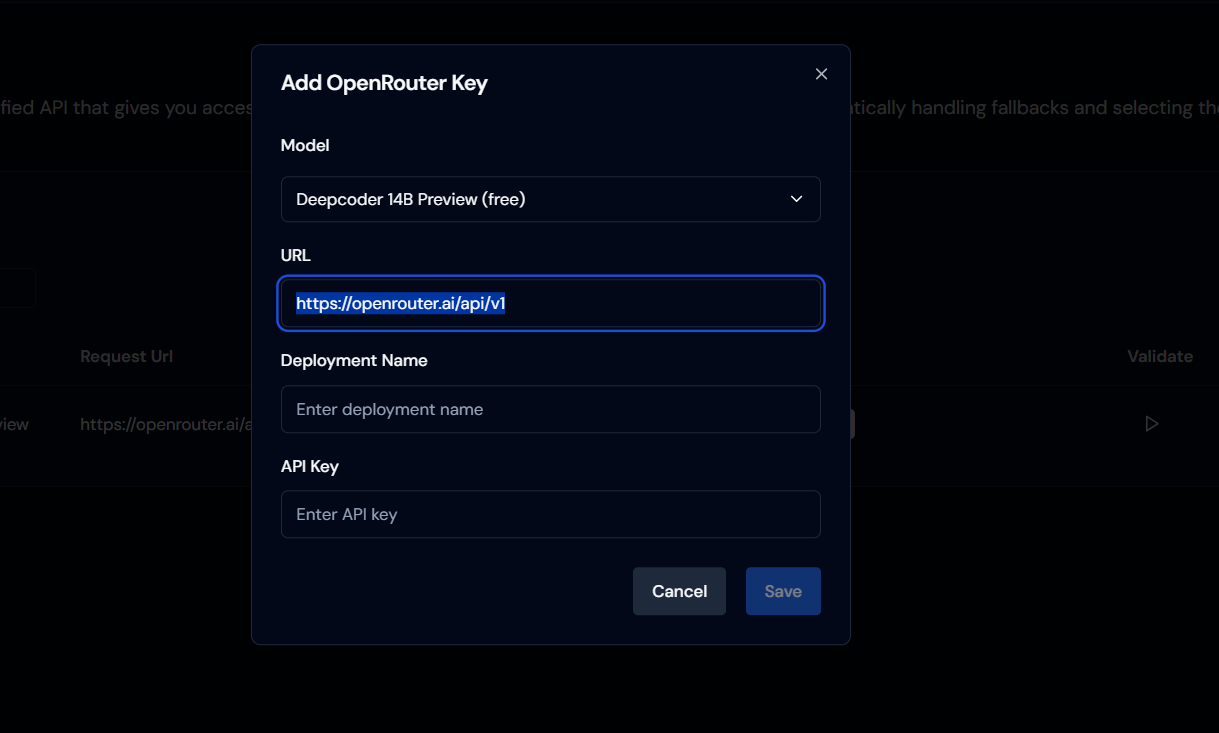
OpenRouter
As OpenRouter provides a unified API to access multiple LLM providers, it is also configured under Open Deployments.
Steps:
- Select OpenRouter
- Open the OpenRouter models page
- Click Add Models
Configuration fields:
- Select Model
- Enter URL
- Enter Deployment Name
- Enter API Key
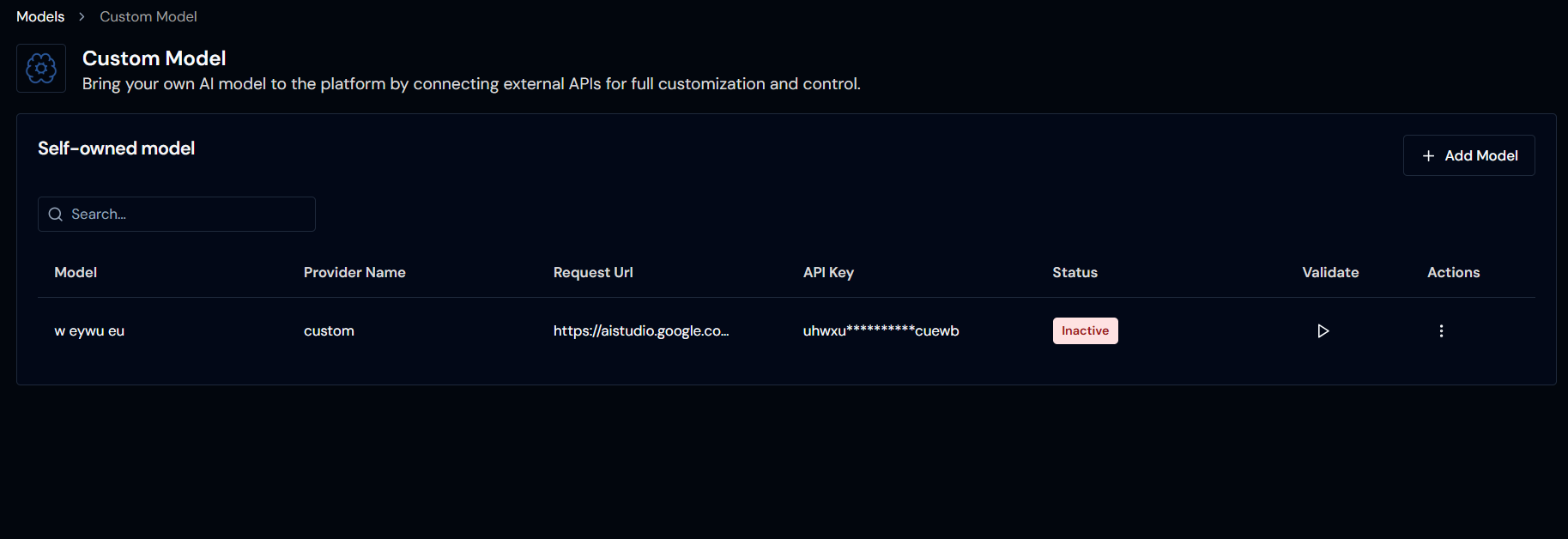
Custom Models
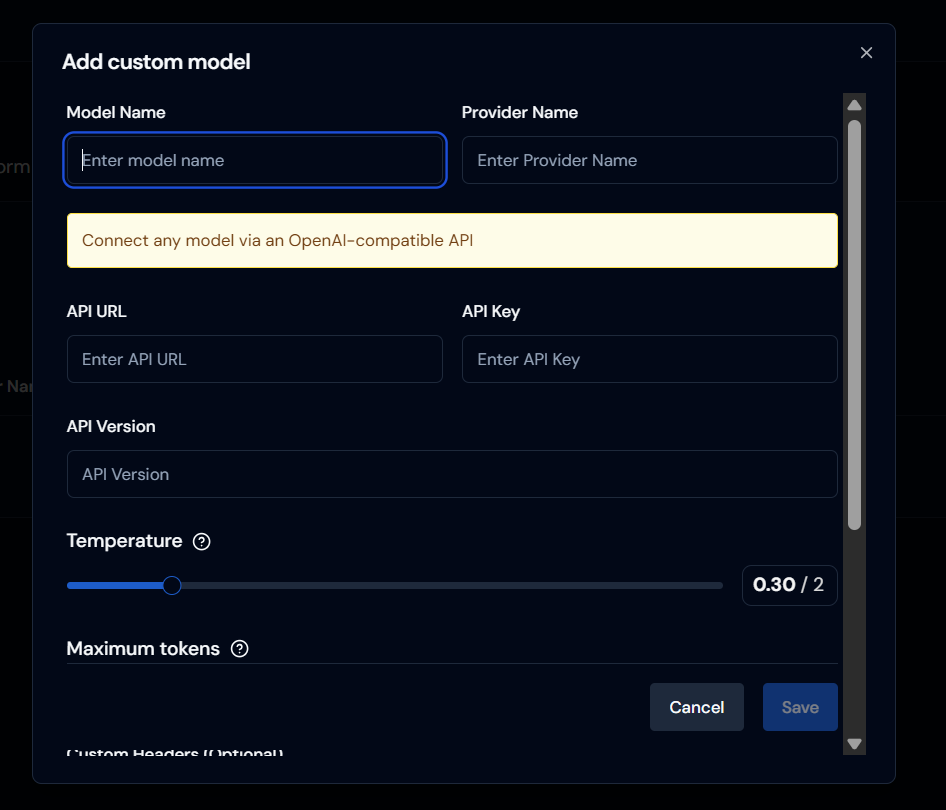
For self-hosted models or providers not listed separately, use Custom Models.
Steps:
-
Click Custom Models > Add Model
-
In the configuration screen, enter:
- Model Name
- Provider Name
- API URL
- API Key
- API Version
-
Configure the following (or keep defaults):
- Temperature
- Maximum Tokens
- Custom Headers and Keys (if required)
-
Click Save Model
Validating Added Models
Once added, models will appear in the model list under their respective provider configurations.
To validate connectivity:
- Click the Validate icon next to the model