Monitor
Monitor your deployments
The monitoring feature in Blocks OS allows you to track the health and uptime of your deployments using configurable monitors. You can set up request-based or callback-based monitors, view detailed uptime statistics, and receive email alerts when incidents occur.
Setting up a monitor
Click on your deployment in the Deployment Overview page. Click on "Add" in the Monitoring panel. There are two types of monitors you can add: Request and Callback.
Request Monitors
Request monitors are monitors that Blocks OS will send requests to in order to observe uptime. You need to specify the URL that you want to monitor. The monitor can be set to send requests at intervals, and the lifespan for each request can be set as well using the Request timeout slider. Additionally, you can specify the HTTP method for your requests as one of the following three: HEAD, GET, POST. You can also send JSON objects in the request body.
Callback Monitors
Callback monitors are ones that Blocks OS will wait to receive requests from. Once you set one up, the URL that you will need to hit in Blocks OS to notify that your service is up will be auto-generated and displayed.
Once you've set up a monitor, the uptime details of the resource are shown in tabular form. Each of the 24 vertical bars represents the health of exactly one hour. If you hover over the bars, you will see the time range and the percentage of uptime. You can pause or delete the monitors by clicking on the three-dot menu and choosing the respective option.
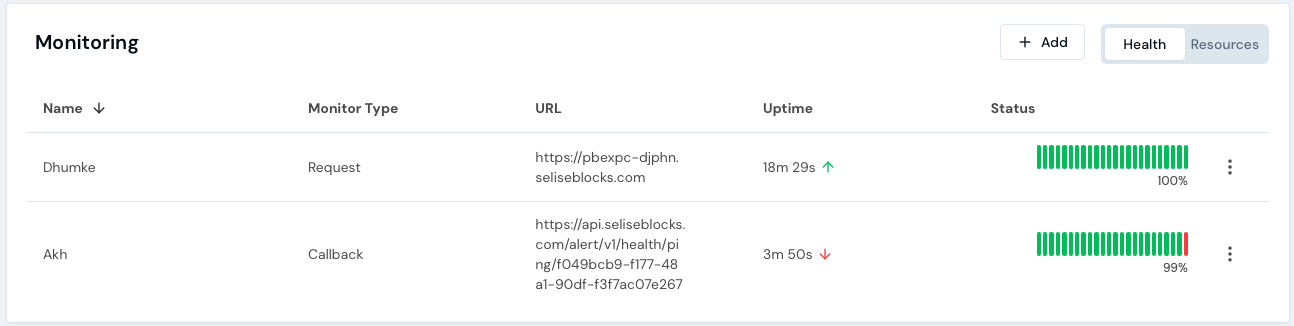
Click on one of these rows to see the details of your monitor.
You will find the following information here:
- The URL to monitor
- The monitor type
- The recipients of the alert email
- A summary of your health in cards
- Current Status
- Last 7 Days
- Last 30 days
- Last 365 days
- Total downtime
- No of incidents
- Uptime percentage
You will also see the ability to edit the settings of your monitor on this page in the "Configure" option. You can also pause or delete the monitor by clicking on the three-dot menu in the top-right corner of this page.
Setting up alerts
Whenever an incident is detected in the system, it can notify users via email. To set up notification recipients, you can click on "Add recipient" in the "General Information" tab on the details page. You can add more than one recipient. You can also set up recipients through the "Notification Settings" button in the top-right corner of the details page.