CAPTCHA
Overview
The CAPTCHA service adds an essential security layer to your Construct applications by distinguishing real users from automated bots. By integrating CAPTCHA validation into your authentication flow, you protect your system from spam, credential-stuffing attempts, and other automated attacks. The platform supports industry-standard providers such as Google reCAPTCHA and hCaptcha, allowing you to choose the solution that best fits your security needs.
By default, no CAPTCHA configuration is set. It can be enabled in two ways.
Add CAPTCHA
For Google reCAPTCHA
- Go to the Google reCAPTCHA website.
- Enter your domain in the corresponding field.
- Click the Submit/Send button.
- Once registered, you will receive a Site Key and a Secret Key .
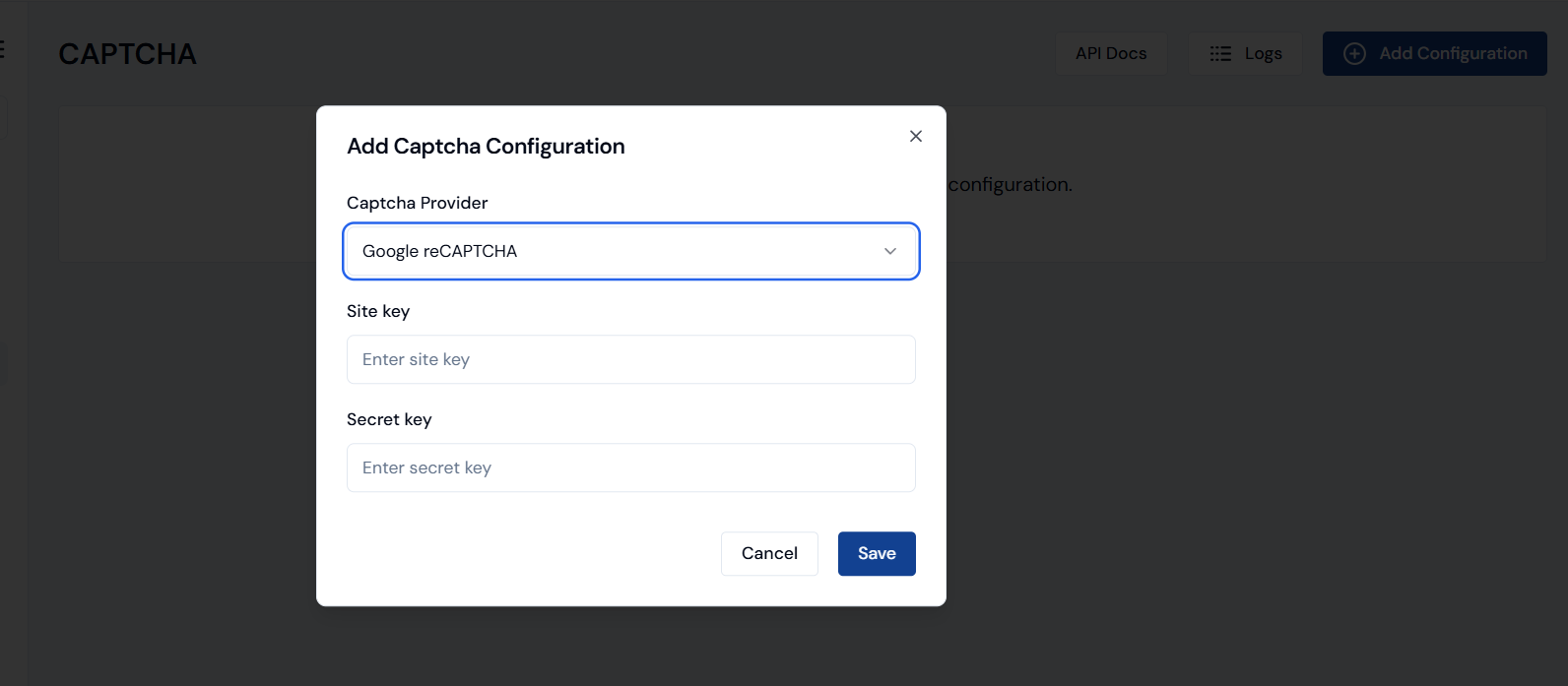
- Go to Core Services → CAPTCHA in Blocks Cloud under IAM section.
- Click Add Configuration .
- Select reCAPTCHA from the dropdown menu.
- Enter the Site Key and Secret Key collected from Google.
- Click Save to complete the setup.
For hCaptcha
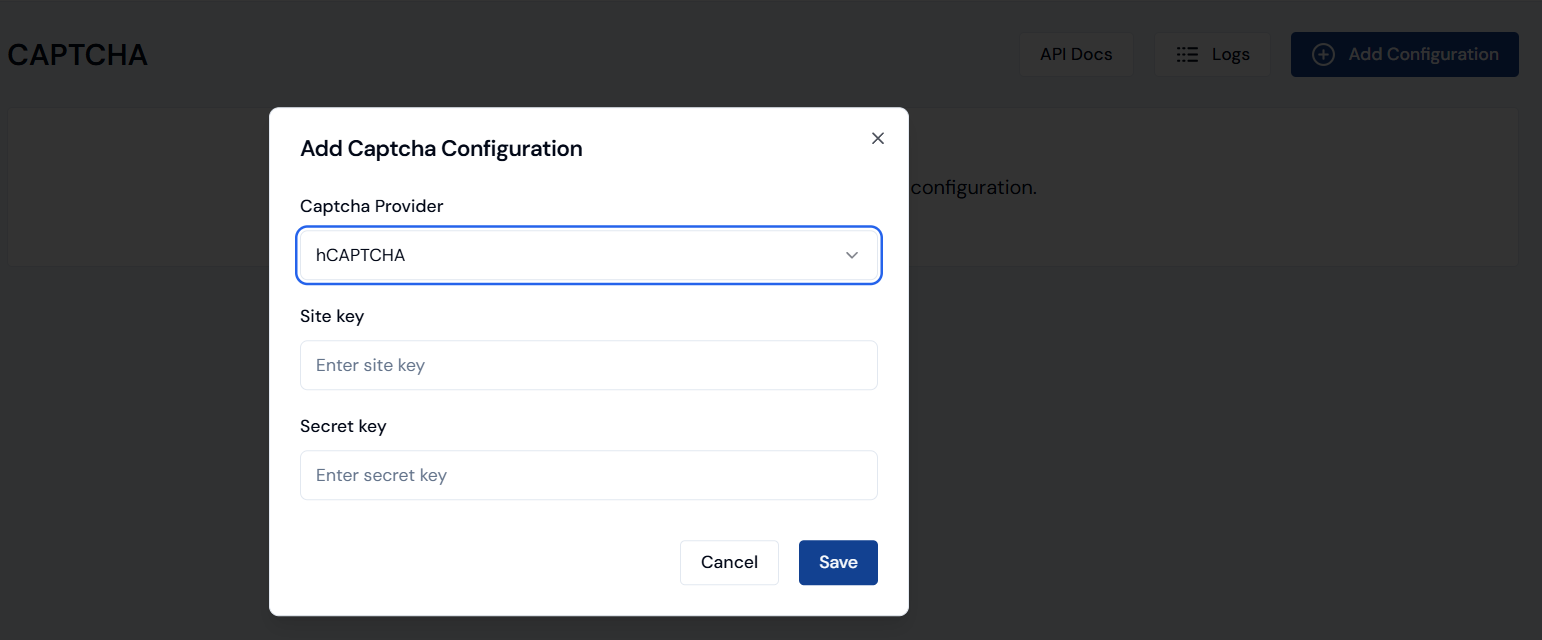
- Go to Core Services → CAPTCHA .
- Click Add Configuration .
- Select hCaptcha from the dropdown menu.
- Enter the required Site Key and Secret Key .
- Click Save to apply the configuration.
Important: Update the .env File
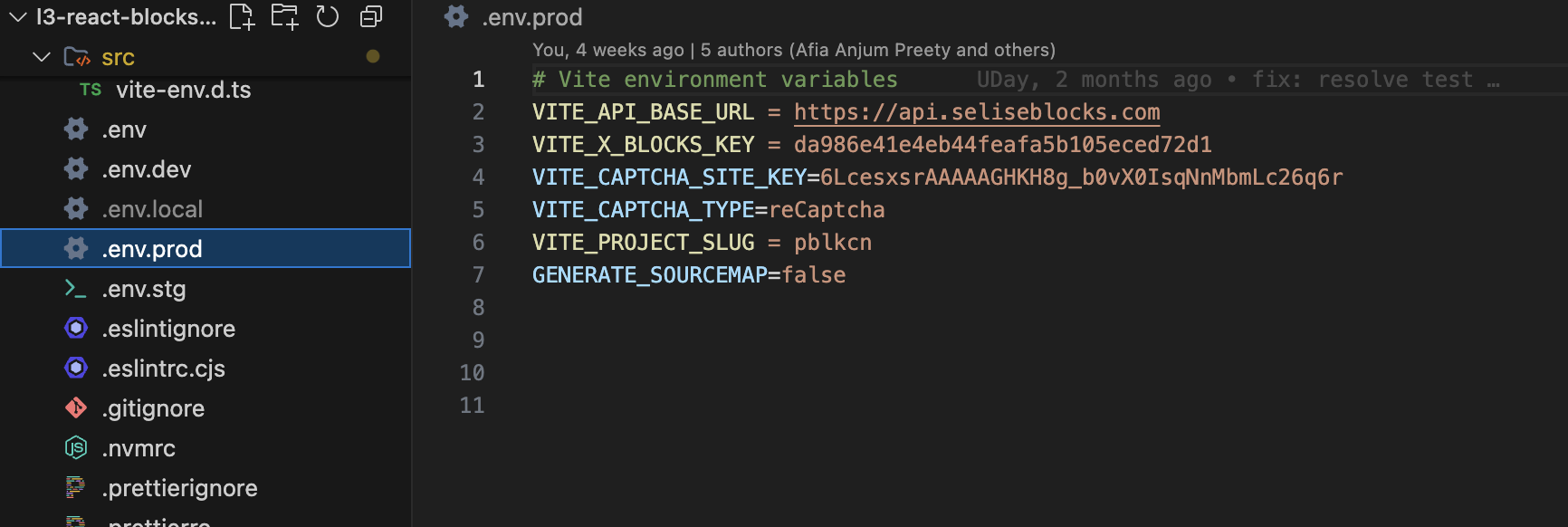
Please make sure to add the Captcha Site Key and Captcha Type in your .env file of Construct. This ensures the application can access your configuration properly.
A single provider (e.g., reCAPTCHA or hCaptcha) can only be configured once.
Only one CAPTCHA can be enabled at a time.